SquadStash
Help Center
Find answers to your questions.
Payments & Collections
Last updated: 2024-05-23
SquadStash simplifies the process of collecting money from your team. This guide covers how to set up payment methods, create collections, and request payments.
Setting Up Payment Methods
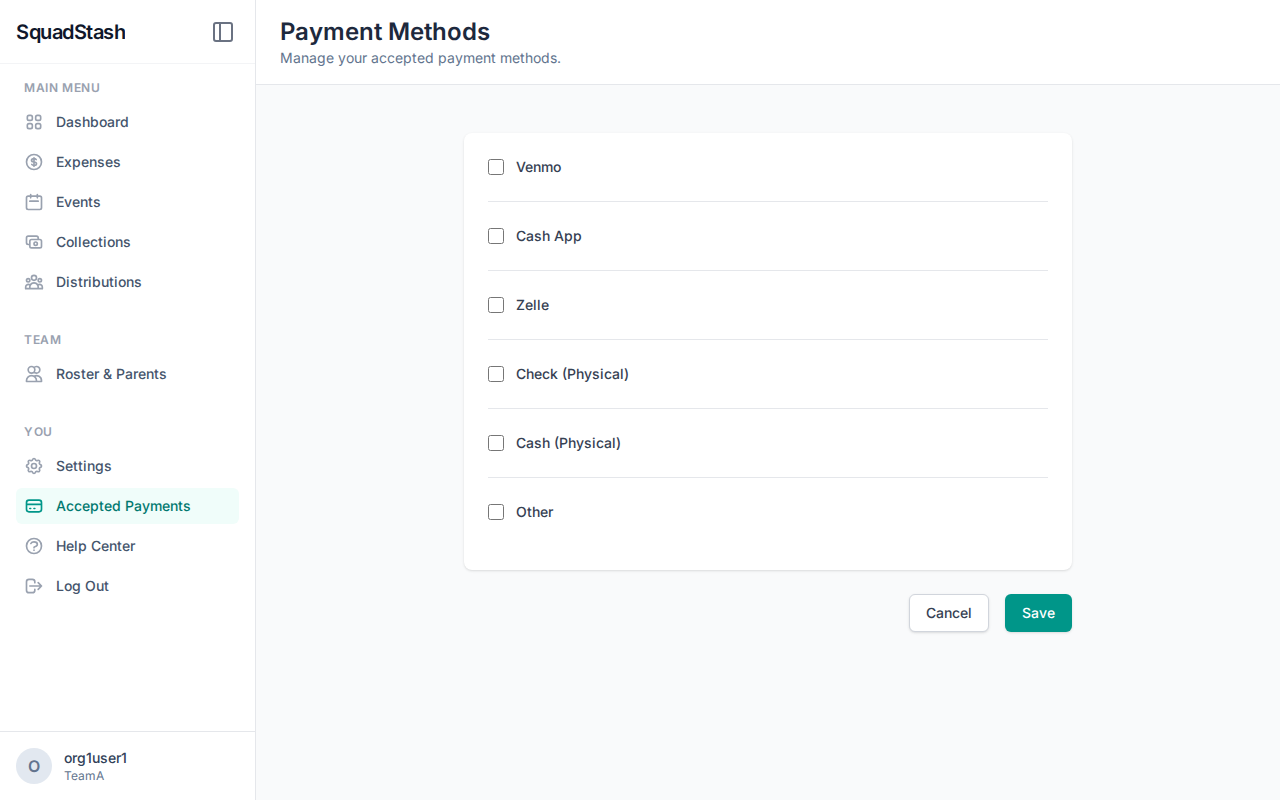
Before you can request payments, you need to configure how you want to be paid.
- Navigate to Settings > Payment Settings.
- Enable the payment methods you accept (Venmo, Cash App, Zelle, PayPal, or Other).
- Enter your username or handle for each enabled method.
- Venmo: Enter your username (without the @).
- Cash App: Enter your Cashtag (without the $).
- Zelle: Enter your email or phone number.
- Other: Enter a custom name and instructions (e.g., "Cash at practice").
- Click Save Settings.
Creating a Collection
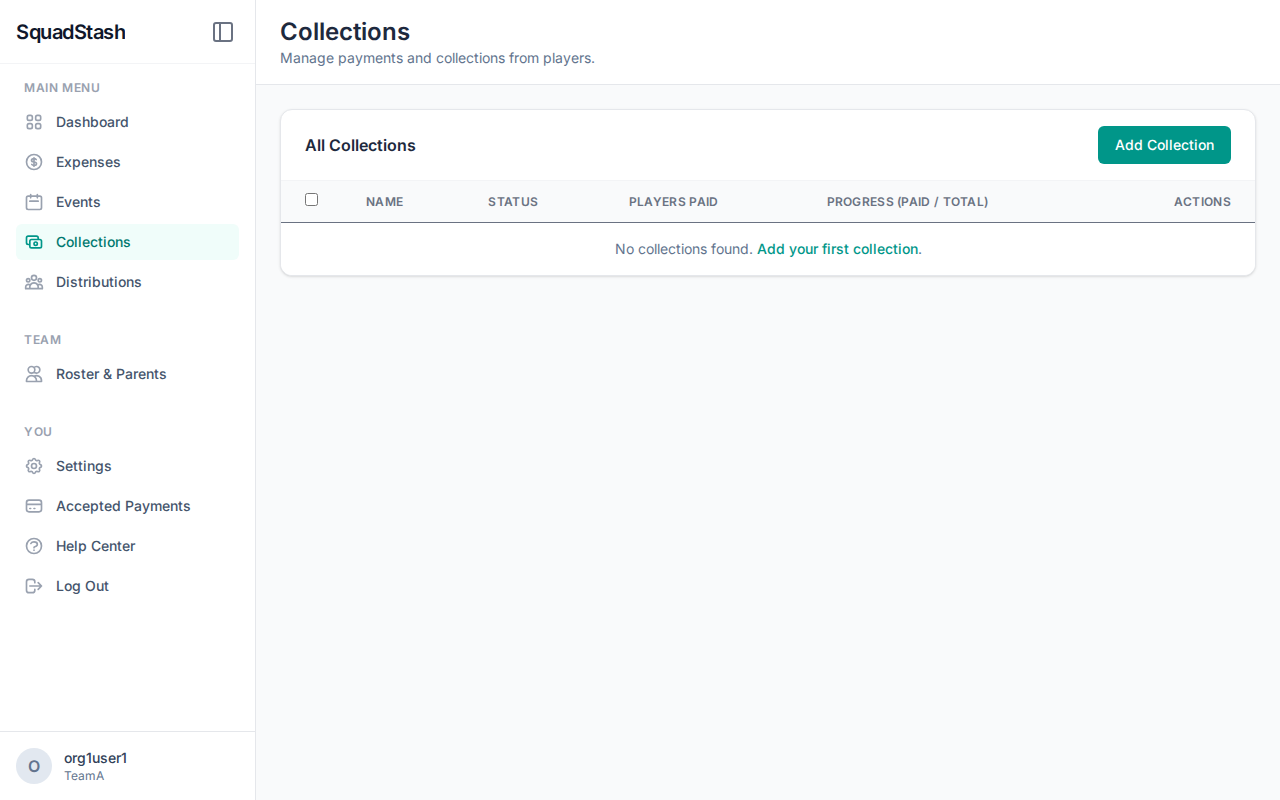
A "Collection" is a request for money from your players. It links expenses to players.
- Go to the Collections tab.
- Click Create Collection.
- Select an Event: (Optional) If the expenses are related to a specific event.
- Name: Give your collection a descriptive name (e.g., "Tournament Fees").
- Due Date: Set when the payment is due.
- Select Expenses: specific expenses you want to be reimbursed for.
- Select Players: Choose which players are responsible for these expenses.
- Click Save or Save and Add Another.
Finalizing a Collection
Once you have added all expenses and players, you need to finalize the collection to calculate the amount per player.
- Open the Collection you created.
- Review the "Total Expenses" and "Amount Per Player".
- Click Finalize & Distribute.
- Note: This locks the collection and creates "Distributions" for each player.
Requesting Payment
After finalizing, you can send payment requests to your players.
Individual Requests
- Go to the Collections detail page.
- Find the player in the list.
- Click the Request Payment button (or "Remind").
- This will open a pre-filled email with payment links and details.
Bulk Requests
- On the Collections list or detail page, look for a bulk action option (if available).
- Or use the Request Payment button which may allow selecting multiple recipients.
Tracking Payments
- Go to the Distributions tab or the specific Collection.
- When a player pays, click Toggle Paid next to their name.
- The status will update to "Paid" and the date will be recorded.
Refunds & Cancellations
- Removing a Player: You can remove a player from a collection if they haven't paid yet. If the collection is finalized, this will recalculate the share for others.
- Cancelling Expenses: If an expense is cancelled, any collected funds will be credited to the players.
Need help? Contact support at support@squadstash.com.
Need more help? Contact Support